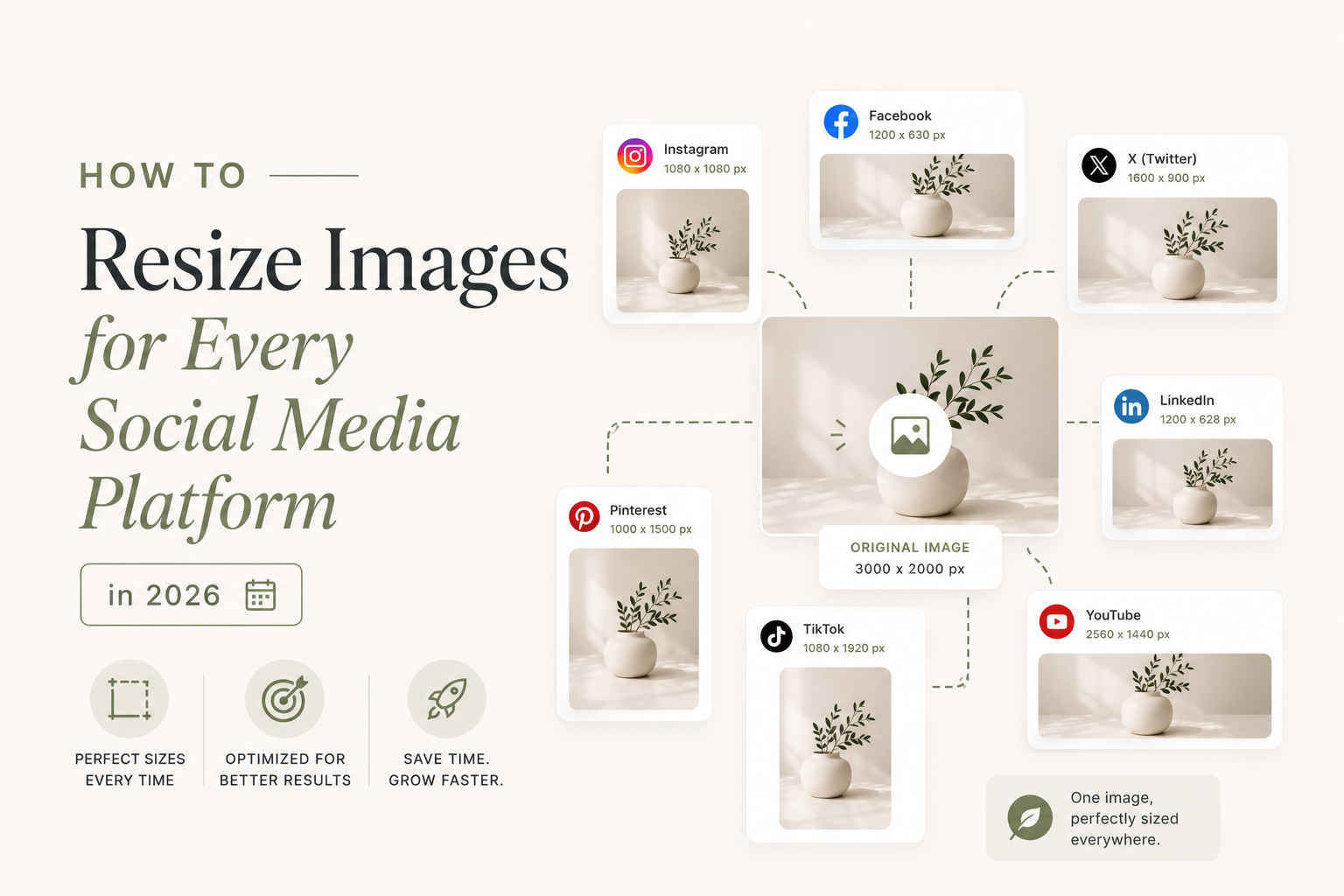
Upload a beautifully composed photo to Instagram and watch it get cropped into something unrecognizable. Post a perfectly designed banner to LinkedIn only to find it squashed and blurry. Every social media platform has its own image dimension requirements, and they change more often than you’d like.
This guide covers the correct image sizes for every major platform as of 2026 — bookmark it.
Why Dimensions Matter More Than You Think
Social platforms don’t politely ask you to crop your image. They crop it for you, using their own center-weighted algorithm that may or may not keep your subject in frame. Getting dimensions right means:
- No accidental crops — your subject stays in the shot
- No upscaling artifacts — images that are too small get stretched and blurry
- No compression penalties — platforms apply extra compression to oversized images before storing them, degrading quality
Instagram is arguably the most dimension-sensitive platform because of how it displays images in the feed, on profiles, and in Stories.
Profile Picture
320 × 320 px (displayed as a circle, ~110 px on most screens)
Upload at 320 × 320 minimum. Instagram displays it smaller but stores the higher resolution for Retina screens. Keep important content centered and away from the edges — the circular crop cuts corners literally.
Feed Posts
- Square: 1080 × 1080 px (1:1 ratio) — the classic
- Portrait: 1080 × 1350 px (4:5 ratio) — takes up more feed space, higher engagement
- Landscape: 1080 × 566 px (1.91:1 ratio) — good for wide photography
Pro tip: Portrait (4:5) posts occupy more vertical space in the feed, which generally means more dwell time and better reach. If your subject works in portrait, use it.
Stories and Reels
1080 × 1920 px (9:16)
Stories and Reels are full-screen vertical. The top ~250 px and bottom ~340 px are partially obscured by the UI (profile info, reaction buttons), so keep your key visual elements in the central safe zone.
TikTok
TikTok is built for vertical video, and its image format follows the same logic.
Videos and Image Posts
1080 × 1920 px (9:16)
TikTok strongly favors the full-screen vertical format. While 9:16 is the standard, TikTok will accept other ratios and add letterboxing or pillarboxing automatically — but content that doesn’t fill the screen performs worse algorithmically.
Profile Picture
200 × 200 px minimum (displayed as a circle)
YouTube
YouTube’s real estate extends beyond just videos — thumbnails and channel art are critical for discoverability.
Video Thumbnails
1280 × 720 px (16:9) — minimum recommended
Thumbnails are arguably the most important creative asset on YouTube; they drive click-through rates directly. Upload at 1280 × 720 or higher (up to 2560 × 1440). Keep text large and legible at small sizes since thumbnails appear tiny in search results.
Channel Art (Banner)
2560 × 1440 px
YouTube channel art is shown at different sizes depending on the device:
- Desktop: 2560 × 423 px (central strip)
- Tablet: 1855 × 423 px
- Mobile: 1546 × 423 px
- TV: full 2560 × 1440 px
Design for the central 1546 × 423 px “safe zone” — this area is guaranteed to be visible on all devices. Use the outer areas for background decoration only.
Profile Picture
800 × 800 px (displayed as a circle across the platform)
Twitter / X
Twitter’s image display changed significantly with the X rebrand, but the underlying dimension requirements are stable.
Profile Picture
400 × 400 px (displayed as a circle)
Header / Banner Image
1500 × 500 px (3:1 ratio)
The header is cropped differently on desktop vs. mobile. Keep the focal point in the center third of the image and leave breathing room at the top and bottom edges.
Tweet Images
- Single image: 1600 × 900 px (16:9) — fills the card nicely
- Two images: 1200 × 675 px each
- Three or four images: 1200 × 675 px each (Twitter crops them into a collage)
For single images, 1600 × 900 is the sweet spot — it fills the in-feed card without being cropped, and it’s wide enough to look sharp on large monitors.
Facebook has a complex mix of personal profiles, pages, events, and groups — each with slightly different requirements.
Cover Photo (Pages)
851 × 315 px (desktop) — Facebook renders it at this size
Upload at 820 × 312 px minimum for desktop, but aim for 1640 × 624 px (2× for Retina/high-DPI screens). Mobile displays the cover at 640 × 360 px, so keep your key content centered.
Post Images
1200 × 630 px — the standard link preview and shared image size
This 1.91:1 ratio fills the news feed card well and is also the size Facebook uses when sharing links. If you’re creating social graphics for Facebook posts, this is your target.
Profile Picture
180 × 180 px upload (displayed at 170 × 170 px on desktop, 128 × 128 on mobile)
Upload at 360 × 360 px or higher for Retina quality.
LinkedIn is the professional network, and its image requirements reflect a desktop-first, content-heavy audience.
Profile Picture
400 × 400 px (minimum) — displayed as a circle
LinkedIn recommends uploading at 400 × 400 to 7680 × 4320 px. For most use cases, a clean 400 × 400 px headshot at high quality is perfect.
Profile Banner / Background
1584 × 396 px (4:1 ratio)
The background banner is a high-visibility piece of real estate on LinkedIn. Unlike Facebook and Twitter headers, it rarely gets aggressively cropped. Keep your branding and key text within the central area.
Company Page Banner
1128 × 191 px — displayed as a narrow banner across the top
Post Images
1200 × 627 px for single images in posts
LinkedIn also supports portrait images (627 × 1200 px) which perform well because they take up more feed space — similar to Instagram’s portrait advantage.
Tips for Maintaining Quality
1. Always start from the highest resolution source. Downscaling a large image looks sharp. Upscaling a small image creates blur artifacts that no amount of sharpening will fix.
2. Use WebP for social assets where possible. Smaller files upload faster, especially on mobile, and modern platforms support WebP.
3. Export at the right quality setting. For photographs, JPEG/WebP quality 85–90 hits the sweet spot between file size and fidelity. Going higher rarely makes a visible difference; going lower causes visible compression artifacts.
4. Check your crops on mobile. Most social media is consumed on phones. Design at the target dimensions, but preview on a real mobile screen before posting.
5. Keep a master file at high resolution. Platforms evolve their dimension recommendations — having a high-resolution source means you can re-export without starting over.
Resize to Any Platform in Seconds
Remembering all these dimensions is exactly why we built the Social Sizes tool.
Resize your images to any social media format instantly with Resizor — select a platform, pick a format, done.